Self-Service Password Reset (SSPR) – ASP.NET Core 8
Self-Service Password Reset (SSPR) — ASP.NET Core 8Link to this section
Pre-requisites: Basic working knowledge of Microsoft Active Directory, .NET 8 SDK, and optionally SQL Server. The application uses SQLite for development so no database server is needed to get started.
Step 1: Create Active Directory Service AccountLink to this section
Create an Active Directory service account with password reset rights. The account needs permission to:
- Reset user passwords (
SetPassword) - Unlock user accounts (
LockOutTimewrite) - Read user attributes (
userPrincipalName,sAMAccountName,cn)
Step 2: Clone and ConfigureLink to this section
1) Clone the repository from GitHub:
git clone https://github.com/svermaak/self-service-password-reset.git
cd self-service-password-reset/src/SelfServicePasswordReset
2) Store your secrets using .NET User Secrets (these are never committed to source control):
dotnet user-secrets init
dotnet user-secrets set "ActiveDirectory:DomainFQDN" "yourdomain.local"
dotnet user-secrets set "ActiveDirectory:DomainNetBIOS" "YOURDOMAIN"
dotnet user-secrets set "ActiveDirectory:ConnectionUserName" "svc_sspr"
dotnet user-secrets set "ActiveDirectory:ConnectionPassword" "your-service-account-password"
dotnet user-secrets set "Encryption:Key" "your-long-random-encryption-key"
Note: The DomainFQDN must be the internal AD domain name (e.g., corp.contoso.com), not the external domain. Run echo %USERDNSDOMAIN% on a domain-joined machine to find it.
Step 3: Database SetupLink to this section
For development: No setup needed. The app uses SQLite and auto-creates the database (sspr-dev.db) on first run.
For production (SQL Server):
1) Create a SQL Server database (e.g., SSPR)
2) Set the connection string:
dotnet user-secrets set "ConnectionStrings:DefaultConnection" "Server=your-server;Database=SSPR;User Id=sspr_user;Password=db-password;TrustServerCertificate=True"3) The tables (Hints, Questions, AuditLogs) are auto-created on startup via EnsureCreated().
Step 4: Configuration ReferenceLink to this section
All settings are in appsettings.json. Secrets should be in user-secrets (dev) or a vault (prod).
Setting | Default | Description |
|---|---|---|
| — | AD domain FQDN (e.g., corp.contoso.com) |
| — | NetBIOS domain name (e.g., CONTOSO) |
| — | Service account for password resets |
| — | Service account password |
| true / false (dev) | LDAPS (port 636) vs plain LDAP (389) |
| — | AES-256 encryption passphrase |
| true / false (dev) | HSTS + HTTPS redirect |
| 5 | Failed attempts before per-user lockout |
| 15 | Lockout window duration |
| — | hCaptcha site key (empty = disabled) |
| — | hCaptcha secret key |
| — | Set to |
Step 5: Run the ApplicationLink to this section
Development mode (SQLite, plain LDAP, no HTTPS):
cd src/SelfServicePasswordReset
ASPNETCORE_ENVIRONMENT=Development dotnet run
Browse to http://localhost:5100
Production mode (SQL Server, LDAPS, HTTPS enforced):
dotnet publish src/SelfServicePasswordReset/SelfServicePasswordReset.csproj -c Release -o ./publishDeploy the publish/ folder to IIS or your hosting platform. Ensure the connection string and AD credentials are set via environment variables or a secrets vault.
Run tests:
dotnet test SelfServicePasswordReset.slnStep 6: Using the ApplicationLink to this section
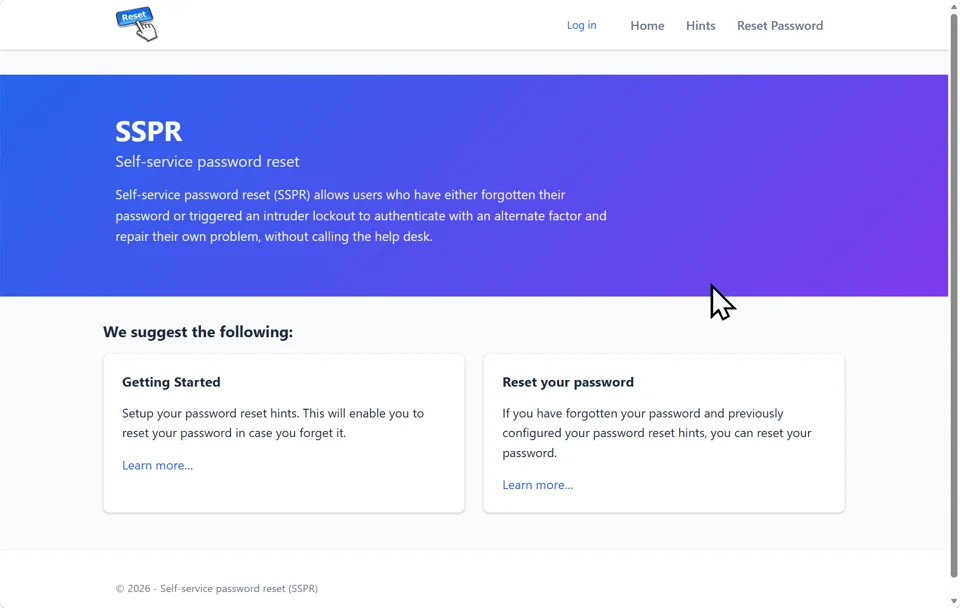
The landing page provides quick access to set up hints or reset your password:

Registering Password Hints
1) Browse to the application and click Log in
2) Enter your AD username and password
Note: Username can be in any format: jsmith, jsmith@domain.com, or DOMAIN\jsmith

3) Navigate to Hints and create at least four security questions with answers
Note: Questions can be selected from the autocomplete list or typed freely. Answers are hashed with SHA-256 and cannot be recovered.

4) Once you have at least four hints configured, your hints page will look like this:

Self-Service Password Reset
1) Click Reset Password from the navigation menu
2) Enter your username (UPN, sAMAccountName, or CN all work)

3) Answer the three randomly selected security questions
4) Enter and confirm your new password
Password requirements:
- Longer than 8 characters
- Must contain at least 3 of: uppercase, lowercase, number, special character
- Cannot contain common weak passwords

5) Complete the CAPTCHA if enabled, then click Reset Password
6) If the password was successfully reset, the following confirmation will display:

Security FeaturesLink to this section
- AES-256 encryption for stored usernames and questions (random IV per operation)
- SHA-256 hashing with unique salt for security question answers
- LDAP injection protection — all inputs escaped per RFC 4515
- CSRF tokens on all forms
- Rate limiting — sliding window per IP (configurable)
- Account lockout — per-user brute force protection tracked via audit log
- Security headers — CSP, X-Frame-Options, HSTS, X-Content-Type-Options, Referrer-Policy
- Audit logging — every reset attempt stored in database with user, IP, timestamp, and outcome
- Role-based access — question management restricted to Admin role
- No secrets in source — all credentials stored via .NET User Secrets or environment variables
Source CodeLink to this section
The full source code is available on GitHub: github.com/svermaak/self-service-password-reset
Self-Service Password Reset (SSPR) version history
- Rebuilt on ASP.NET Core 8, source moved to GitHub
- SQLite for development, SQL Server optional for production
- Adds LDAPS, optional hCaptcha, rate limiting, per-user lockout and audit logging
- Initial release: ASP.NET project on Bitbucket with SQL Server database
- Users register security question hints and reset their own passwords
No comments yet
Comments are moderated and appear once approved.