How to write data to Azure Table Store with an Azure Function
1) Create Function AppLink to this section
From Azure Portal,
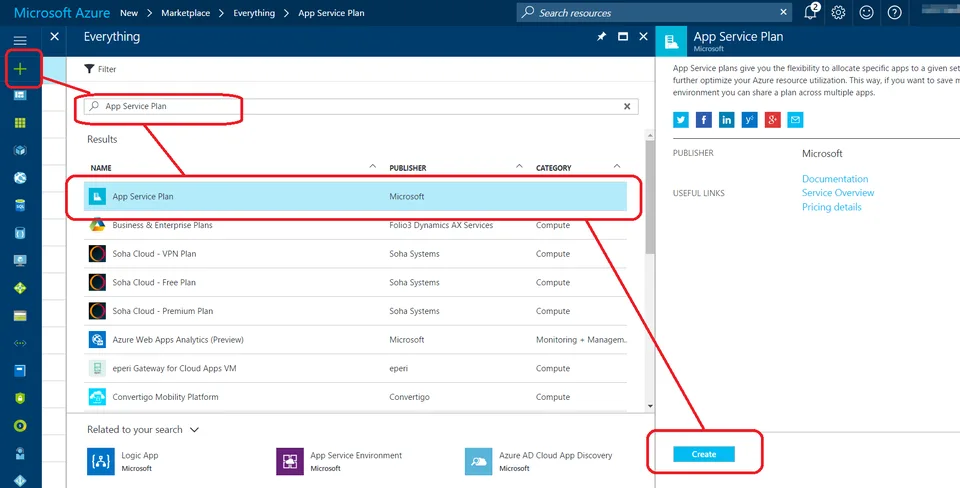
Click New
Search for Function App
Click Function App in Results
Click Create

Supply App name, Subscription, Resource Group, Hosting Plan, Location and Storage and click Create
2) Create FunctionLink to this section
After Function App is created, navigate to it.
From here we'll use a pre-made function and alter it to write to Table Storage.
Select Webhook + API, C# as the language and click Create this Function

3) Add Azure Table StorageLink to this section
From the Integrate option, add Azure Table Storage. Note the Table parameter name.

4) Edit FunctionLink to this section
Add file item.csx (Click Save and Run to ensure no errors)
This is an object that inherits TableEntity and adds ItemName
#r "Microsoft.WindowsAzure.Storage"
using Microsoft.WindowsAzure.Storage.Table;
public class Item : TableEntity
{
public string ItemName {get;set;}
}
Add a reference to item.csx to run.csx (Click Save and Run to ensure no errors)
This allows Item object to be used in run.csx
#load "item.csx"Change into Synchronous Function (Click Save and Run to ensure no errors)
This is required for the next step, out is not allowed on Asynchronous functions
...
public static HttpResponseMessage Run(HttpRequestMessage req, TraceWriter log)
...
dynamic data = req.Content.ReadAsAsync().Result;
...
Add an out variable and assign value (Click Save and Run to ensure no errors)
Add out item with the name of the table parameter name
...
public static HttpResponseMessage Run(HttpRequestMessage req, TraceWriter log, out Item outputTable)
...
outputTable = new Item() {PartitionKey = "some-partition-key", RowKey=Guid.NewGuid().ToString(), ItemName = name ?? "No name"};
...
Here is complete listing of run.csx
#load "item.csx"

using System.Net;

public static HttpResponseMessage Run(HttpRequestMessage req, TraceWriter log, out Item outputTable)
{
log.Info("C# HTTP trigger function processed a request.");

// parse query parameter
string name = req.GetQueryNameValuePairs()
.FirstOrDefault(q => string.Compare(q.Key, "name", true) == 0)
.Value;

// Get request body
dynamic data = req.Content.ReadAsAsync().Result;

// Set name to query string or body data
name = name ?? data?.name;

outputTable = new Item() {PartitionKey = "some-partition-key", RowKey=Guid.NewGuid().ToString(), ItemName = name ?? "No name"};

return name == null
? req.CreateResponse(HttpStatusCode.BadRequest, "Please pass a name on the query string or in the request body")
: req.CreateResponse(HttpStatusCode.OK, "Hello " + name);
}
5) Verify DataLink to this section
Every time this function runs, an entry will be created in the Azure Table Storage.
You can use Microsoft Azure Storage Explorer to view these entries.

No comments yet
Comments are moderated and appear once approved.