How to Archive File Shares with PowerShell
- Server administrator rights
- Archive destination location
IntroductionLink to this section
This article outlines an uncomplicated Powershell script for archiving data from a file server. This process should be configured by a server administrator and typically would run as a scheduled task to ensure automated archiving.
The function dynamically creates the archive date based on the current date and archive age then leverages Robocopy with a few parameters to move these files to the archive location. The date created, date modifies and date accessed is interrogated so that it ensures only the correct files are archived.
It is best if this archive location has some sort of compression, duplication or is a cheaper storage.
The intention of the article is not to replace the need for a commercial data classification and archiving solution, but provide a functional archiving solution if you do have or cannot afford such a system.
The Powershell functionLink to this section
Simply run this to import the Powershell function.
function ArchiveData($a, $b, $c)
{
    # Build dynamic date for archiving
    $archiveDate = (Get-Date).AddDays(-$($c)).ToString("yyyyMMdd")

    # Run robocopy move command that ensures permission stays the same
    robocopy "$($a)" "$($b)" /W:1 /R:1 /MOV /COPYALL /b /minage:$archiveDate /minlad:$archiveDate /s /xf Thumbs.db desktop.ini /xd $RECYCLE.BIN """System Volume Information"""
}ExamplesLink to this section
# Example 1
# Archive data older, unmodified and not accessed for 1 year
# from D:\CorporateData\DepartmentA to D:\ArchivedData\DepartmentA
ArchiveData "D:\CorporateData\DepartmentA" "E:\ArchivedData\DepartmentA" "365"

# Example 2
# Archive data older, unmodified and not accessed for 100 days
# from D:\CorporateData\DepartmentB to D:\ArchivedData\DepartmentB
ArchiveData "D:\CorporateData\DepartmentB" "E:\ArchivedData\DepartmentB" "100"

# Example 3
# Archive data older, unmodified and not accessed for 30 days
# from D:\CorporateData\DepartmentC to D:\ArchivedData\DepartmentC
ArchiveData "D:\CorporateData\DepartmentC" "E:\ArchivedData\DepartmentC" "30"
Drive MappingLink to this section
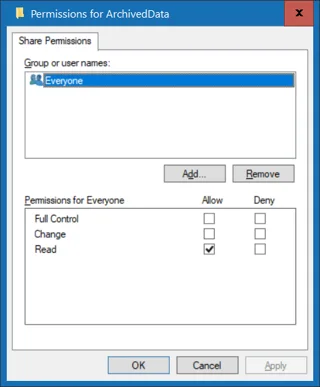
After setting this up, you may choose to map an additional drive map to this archive data. When I configured it, I set this to read-only. This means, users can retrieve data from their archive data drive mapping, but not actually save to it.
If a user wants to work on an archived file, there are two options:
- Open the file and save to a new location.
- Copy the file to a new location before opening it
Navigating to the desired archived file is also familiar to the end user, because the folder structure is maintained in the archive folder.
ConclusionLink to this section
I hope you found this tutorial useful. You are encouraged to ask questions, report any bugs or make any other comments about it below.
No comments yet
Comments are moderated and appear once approved.