Active Directory – Securely Set Local Account Passwords
- Target local account must already exist
- Network share accessible by all users
- Group Policy Management Console (GPMC)
How it works
A token is generated for a supplied account with the desired password.
Example of a token: k8vVeIYZeI+6rkvlvw8eLOEnHK2yTcBfHQP4UEZrCgigcagy7+qt969LISkmHH/7CS5KfVWLEZh8cZMzCkVYGw==
This token (an AES-256 encrypted version of the username and the password) is passed to the SecurelySetPassword tool which is executed at start-up via an Active Directory Group Policy.
The token is decrypted and used to set the password for the specified account to the desired password.
Step 1: Download
Download SecurelySetPassword tool
Step 2: Create and Test Token
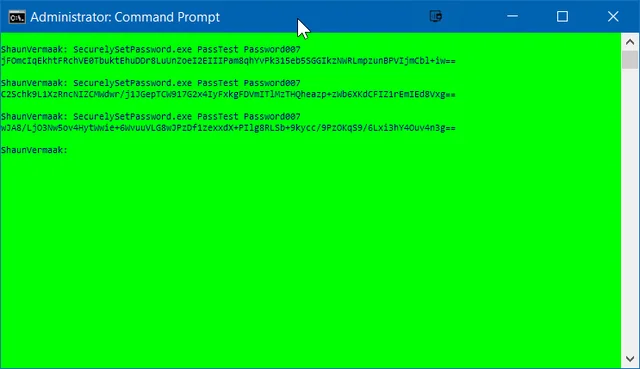
1) Run SecurelySetPassword.exe USERNAME PASSWORD (Note how the generated token is different on each run, this is because the value is salted for added security)
2) Copy token. It will be used in the implementation steps

3) To test the token, run SecurelySetPassword.exe TOKEN (Note for a successful test the user needs to exist)

Step 3: Copy SecurelySetPassword.exe to a network share
Copy SecurelySetPassword.exe to a network share accessible by all users (such as NETLOGON share)

Step 4: Implement Active Directory Group Policy
1) Start Microsoft Group Policy Management Console (GPMC.msc)
2) Create and link a new Group Policy with the desired scope
3) Browse to Computer Configuration > Preferences > Windows Settings > Files and add a new file object
4) Set the Source files(s) path to the location of SecurelySetPassword.exe (\\ittelligence.com\NETLOGON\Software\SecurelySetPassword\SecurelySetPassword.exe in my case)
5) Set the Destination file to %CommonAppdataDir%\SecurelySetPassword\SecurelySetPassword.exe

6) Browse to Computer Configuration > Preferences > Control Panel Settings > Scheduled Tasks and add a new scheduled task object

7) On the Triggers tab create new trigger and set to At startup

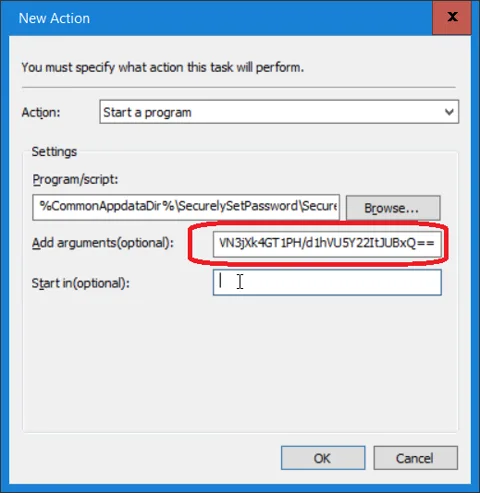
8) On the Actions tab create a Start a program action to %CommonAppdataDir%\SecurelySetPassword\SecurelySetPassword.exe with token as argument

I hope you found this tutorial useful. You are encouraged to ask questions, report any bugs or make any other comments about it below.
No comments yet
Comments are moderated and appear once approved.