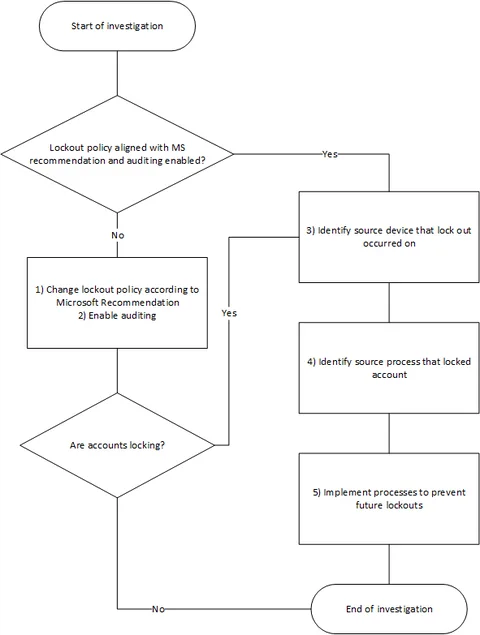
Active Directory Locked Account Investigation Process
ProcessLink to this section
1) Change lockout policy according to Microsoft RecommendationLink to this section
The lockout policy's ultimate goal is to protect against automated password guessing (brute-force attack) and as such, the value should be high enough so that accounts are not accidentally locked out by an end user or incorrect saved password.Link to this section
As per the following articles, I would recommend the following lockout settings
- Account lockout threshold 50
- Reset account lockout counter after 10 minutes
https://technet.microsoft.com/en-us/library/cc671957(v=ws.10).aspx
https://technet.microsoft.com/en-us/library/hh994574(v=ws.11).aspx
2) Enabling AuditingLink to this section
Identifying the source of the account lockouts in a complex environment will be virtually impossible without auditing enabled.
Please note: Only events that occurred after enabling auditing will be logged. It also might be necessary to increase Security log file size

In addition to the above, the following might provide some extra clues to the source of the lockout. After setting these values, additional logs can be found in Event Viewer, Applications and Services Log/Microsoft/Windows/NTLM
Path: Computer Configuration\Windows Settings\Local Policies\Security Options
Setting: Network Security: Restrict NTLM: Audit Incoming NTLM Traffic
Value: Enable auditing for all accounts
Setting: Network security: Restrict NTLM: Audit NTLM authentication in this domain
Value:    Enable All
3) Identify source device that lockout occurred onLink to this section
3.1) Event CombLink to this section
Part of Account Lockout and Management Tools https://www.microsoft.com/en-us/download/details.aspx?id=18465
Still a useful tool in a pinch.
Please note: Built-in search for account lockout is not using the newer event IDs. To search newer IDs, add 4625 4740 4771 4768 4776 to the list
For details on these events, see
https://www.ultimatewindowssecurity.com/securitylog/encyclopedia/event.aspx?eventid=529
https://www.ultimatewindowssecurity.com/securitylog/encyclopedia/event.aspx?eventid=4625
https://www.ultimatewindowssecurity.com/securitylog/encyclopedia/event.aspx?eventid=644
https://www.ultimatewindowssecurity.com/securitylog/encyclopedia/event.aspx?eventid=4740
https://www.ultimatewindowssecurity.com/securitylog/encyclopedia/event.aspx?eventid=675
https://www.ultimatewindowssecurity.com/securitylog/encyclopedia/event.aspx?eventid=4771
https://www.ultimatewindowssecurity.com/securitylog/encyclopedia/event.aspx?eventid=676
https://www.ultimatewindowssecurity.com/securitylog/encyclopedia/event.aspx?eventid=4768
https://www.ultimatewindowssecurity.com/securitylog/encyclopedia/event.aspx?eventid=681
https://www.ultimatewindowssecurity.com/securitylog/encyclopedia/event.aspx?eventid=4776

All gathered events from selected domain controllers will be saved into text files in the temp folder

3.2) Lockout StatusLink to this section
Part of Account Lockout and Management Tools https://www.microsoft.com/en-us/download/details.aspx?id=18465
When you start tool you specify the user account to inspect.
Please note: If the lock device is a Domain Controller, you have to follow the trail until you get to the actual source device name

3.3) AD AuditLink to this section
See https://www.manageengine.com/products/active-directory-audit
My personal favorite, AD Audit makes finding the source account that locks device super easy, just use built-in reports

4.1) PowershellLink to this section
FindUserBadPwdAttemptsLink to this section
https://gallery.technet.microsoft.com/Troubleshoot-Account-Bad-4bf47940Link to this section
Get-LockedOutLocationLink to this section
https://gallery.technet.microsoft.com/scriptcenter/Get-LockedOutLocation-b2fd0cabLink to this section

4) Identify the source process that locked the accountLink to this section
4.1) NetWrix Account Lockout ExaminerLink to this section
See https://www.netwrix.com/account_lockout_examiner.html
Install NetWrix Account Lockout Examiner on another computer. After that run it and point to the device that generates lockouts.

4.2) ADAuditLink to this section
See https://www.manageengine.com/products/active-directory-audit
As I said before, my personal favorite. After finding source account that locks device using built-in reports, the Account Lockout Analyzer can show the source process that locks accounts

5) Implement processes to prevent future lockoutsLink to this section
5.1 Windows Services, Scheduled Tasks and COM Objects
Utilize service accounts with strong non-expiring passwords or managed service accounts.
5.2 Drive Mappings
Do not map drives with explicit username and password. Utilize Group Policy User Drive Map Preference to map the drive mappings.


5.3 Logon Sessions
Implement RDP inactive/idling session logoff.Link to this section
5.4 LAN Manager Authentication Level
Ensure that your LAN Manager Authentication Level is at the required level for your clients and authentication used.
5.5 Externally Exposed RDP
Install a tool such as RDP Guard to automatically block external brute-force attacks or better yet, set up a secure VPN and access RDP from within this VPN

5.6 Credential Manager
Disable the Credential Manager service. This will prevent users from saving/using stored passwords

5.7 Cached Credential
Remove cached credentials for both user and SYSTEM accounts
For user accounts
rundll32.exe keymgr.dll,KRShowKeyMgrFor SYSTEM accounts
psexec -s -i -d rundll32.exe keymgr.dll,KRShowKeyMgrTips
If your account that you are using for the investigation is locking, rename your username for the duration of the investigation
No comments yet
Comments are moderated and appear once approved.