Configure Photo Screensaver via Active Directory Group Policy
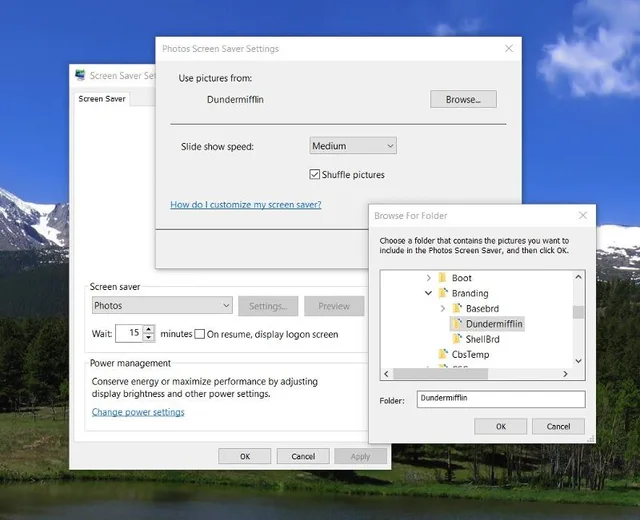
1) On reference computer, configure the default Photo screensaver including location. This is done because this value is stored as an encrypted value within the Registry. In the article C:\Windows\Branding\Dundermifflin is used.

2) Open Regedit and browse to HKCU\SOFTWARE\Microsoft\Windows Photo Viewer\Slideshow\Screensaver and record value for EncryptedPIDL

3) Store images that will be used for the screensaver in a network location The Domain DFS is perfect for small files like these

4) Create a new policy and add the EncrypedPIDL registry value to User Configuration > Preferences > Windows Settings > Registry

5) From the Common tab enable the Remove the item when it is no longer applied option
6) Add the images to User Configuration > Preferences > Windows Settings > Files. The Source File(s) should be the network location used in Step 3.
TIP: Press F3 to open Variable Reference List

7) For the Destination File, specify filename with location from Step 1

8) From the Common tab enable the Remove the item when it is no longer applied option

9) Configure the rest of the policy as per norm for screensaver.

10) For the Force specific screen saver specify %Systemroot%\System32\PhotoScreensaver.scr

No comments yet
Comments are moderated and appear once approved.