Phasing in a Group Policy
- .NET Framework 4.5
- Group set as a GPO security filter
IntroductionLink to this section
Some settings, especially security related, are postponed indefinitely because no built in phase-in mechanism exists. Sure you can apply a GPO via a group but you have to remember to keep adding members to it and even then, you will probably not add members in randomly. The process below tackles these issues by automating the GPO phase-in process.
Please note: The process below is intended to be configured on the group that is configured as a security filter on a GPO
ImplementationLink to this section
1) Download and extract ADRandomAddToGroup.zip (here is VirusTotal scan) to a folder of your choice, on the computer which it will be scheduled to run on.
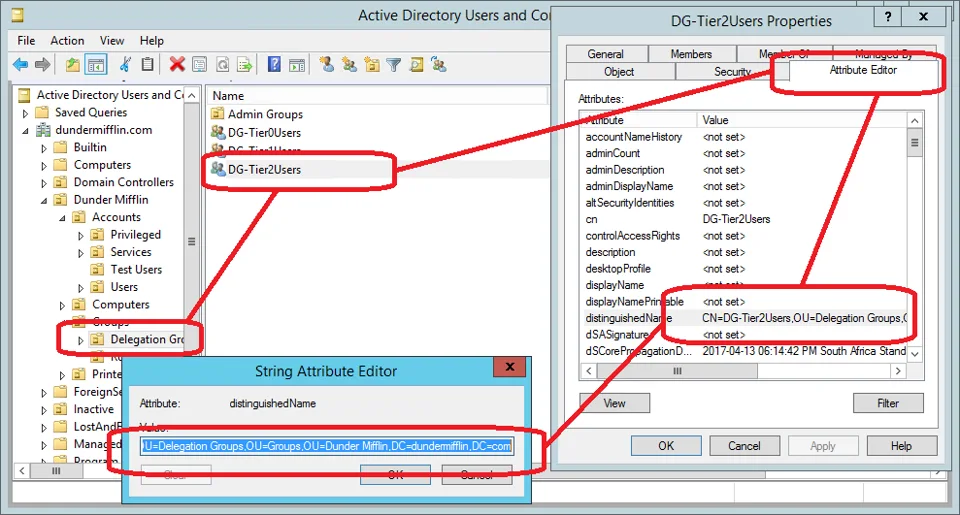
2) Get group DN

3) Run Configurator.exe (Configurator Editor).
All configuration is stored within the ADRandomAddToGroup.ConsoleApp.exe file and can be either edited directly or with my Configuration Editor tool.
a) On the Settings tab, enter the Group's distinguished name (DN), recorded in Step 2.
b) Configure whether users or computers should be randomly added, and how many to add at a time. For this example, users are added randomly, five at a time.
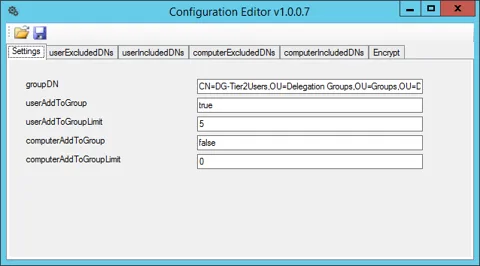
c) On the userExcludedDNs tab, add distinguished names of OUs that contains objects that should never be added to this group. (Use +/-/Insert/Delete/Spacebar to manage entries.)
d) On the userIncludedDNs tab, add distinguished names of OUs that contains objects that should be added to this group. (Use +/-/Insert/Delete/Spacebar to manage entries.)
e) Similarly, included and excluded distinguished names can be configured for computer objects.
f) Save the configuration file and close Configuration Editor.
This is how the XML file look for the above setting if you choose to edit it manually.
<?xml version="1.0" encoding="utf-8"?>
<configuration>
<configSections>
<section name="userExcludedDNs" type="System.Configuration.NameValueSectionHandler" />
<section name="userIncludedDNs" type="System.Configuration.NameValueSectionHandler" />
<section name="computerExcludedDNs" type="System.Configuration.NameValueSectionHandler" />
<section name="computerIncludedDNs" type="System.Configuration.NameValueSectionHandler" />
</configSections>
<userExcludedDNs>
<add key="35206bba-ff72-40da-ba30-26c93e29470b" value="CN=Account Operators,CN=Builtin,DC=dundermifflin,DC=com" />
<add key="7f8e789c-0978-4378-b718-08501995a307" value="CN=Users,DC=dundermifflin,DC=com" />
</userExcludedDNs>
<userIncludedDNs>
<add key="UserExclusion2" value="CN=Users,DC=dundermifflin,DC=com" />
<add key="091bb899-58b4-427d-a5a9-da29dde49f0a" value="OU=Test Users,OU=Accounts,OU=Dunder Mifflin,DC=dundermifflin,DC=com" />
</userIncludedDNs>
<computerExcludedDNs />
<computerIncludedDNs />
<appSettings>
<add key="groupDN" value="CN=DG-Tier2Users,OU=Delegation Groups,OU=Groups,OU=Dunder Mifflin,DC=dundermifflin,DC=com" />
<add key="userAddToGroup" value="true" />
<add key="userAddToGroupLimit" value="5" />
<add key="computerAddToGroup" value="false" />
<add key="computerAddToGroupLimit" value="0" />
</appSettings>
<startup>
<supportedRuntime version="v4.0" sku=".NETFramework,Version=v4.5" />
</startup>
</configuration>
Demo ExecutionLink to this section
1) Output for the ADRandomAddToGroup.ConsoleApp.exe command

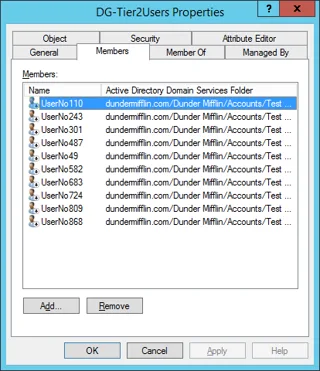
2) Random members added to group after first execution
3) Random members added to group after second execution
CODELink to this section
Here is the section in the code that manages the Random Group Members.
try
{
if (string.IsNullOrEmpty(domainFQDN))
{
domainFQDN = ActiveDirectory.GetFQDN(groupDN);
}

DirectoryEntry group;
if (!string.IsNullOrEmpty(domainUserName))
{
group = new DirectoryEntry("LDAP://" + domainFQDN + "/" + groupDN, domainUserName, domainPassword);
}
else
{
group = new DirectoryEntry("LDAP://" + domainFQDN + "/" + groupDN);
}

DirectoryEntry de = new DirectoryEntry("LDAP://" + domainFQDN, domainUserName, domainPassword);
if (!string.IsNullOrEmpty(domainUserName))
{
de = new DirectoryEntry("LDAP://" + domainFQDN, domainUserName, domainPassword);
}
else
{
de = new DirectoryEntry("LDAP://" + domainFQDN);
}

if (userAddToGroup)
{
try
{
using (DirectorySearcher ds = new DirectorySearcher())
{
SortOption sortOption = new SortOption("objectGUID", SortDirection.Ascending);

ds.SearchRoot = de;
ds.PageSize = 1000;
ds.Filter = "(&(objectCategory=person)(objectClass=user))";
ds.PropertiesToLoad.Add("memberOf");
ds.PropertiesToLoad.Add("distinguishedName");
ds.PropertiesToLoad.Add("description");
ds.PropertiesToLoad.Add("userAccountControl");
ds.PropertiesToLoad.Add("lastLogonTimestamp");
ds.PropertiesToLoad.Add("lastLogon");
ds.PropertiesToLoad.Add("pwdLastSet");
ds.PropertiesToLoad.Add("whenCreated");
ds.PropertiesToLoad.Add("objectGUID");
ds.SearchScope = SearchScope.Subtree;
ds.Sort = sortOption;

SearchResultCollection result = ds.FindAll();

int userAddToGroupCount = 0;

foreach (SearchResult sr in result)
{
try
{
string distinguishedName = "";
if (sr.Properties.Contains("distinguishedName"))
{
distinguishedName = sr.Properties["distinguishedName"][0].ToString();
}

DirectoryEntry user = sr.GetDirectoryEntry();
if ((!ActiveDirectory.EntryInDN(user, userExcludedDNs)) && (ActiveDirectory.EntryInDN(user, userIncludedDNs)))
{
if (userAddToGroupCount < userAddToGroupLimit)
{
if (ActiveDirectory.AddToGroup(group, distinguishedName))
{
userAddToGroupCount++;
Logging.LogAndDisplay("Informational", "Added user '" + distinguishedName + "' to group '" + groupDN + "'", logFile);
}
}
}
}
catch(Exception ex)
{
Logging.LogAndDisplay("Warning", ex.Message, logFile);
}
}
}
}
catch(Exception ex)
{
Logging.LogAndDisplay("Error", ex.Message, logFile);
}
}

if (computerAddToGroup)
{
try
{
using (DirectorySearcher ds = new DirectorySearcher())
{
SortOption sortOption = new SortOption("objectGUID", SortDirection.Ascending);

ds.SearchRoot = de;
ds.PageSize = 1000;
ds.Filter = "(objectCategory=computer)";
ds.PropertiesToLoad.Add("memberOf");
ds.PropertiesToLoad.Add("distinguishedName");
ds.PropertiesToLoad.Add("description");
ds.PropertiesToLoad.Add("userAccountControl");
ds.PropertiesToLoad.Add("lastLogonTimestamp");
ds.PropertiesToLoad.Add("lastLogon");
ds.PropertiesToLoad.Add("pwdLastSet");
ds.PropertiesToLoad.Add("whenCreated");
ds.PropertiesToLoad.Add("objectGUID");
ds.SearchScope = SearchScope.Subtree;
ds.Sort = sortOption;

SearchResultCollection result = ds.FindAll();

int computerAddToGroupCount = 0;

foreach (SearchResult sr in result)
{
try
{
string distinguishedName = "";
if (sr.Properties.Contains("distinguishedName"))
{
distinguishedName = sr.Properties["distinguishedName"][0].ToString();
}

DirectoryEntry computer = sr.GetDirectoryEntry();
if ((!ActiveDirectory.EntryInDN(computer, computerExcludedDNs)) && (ActiveDirectory.EntryInDN(computer, computerIncludedDNs)))
{
if (computerAddToGroupCount < computerAddToGroupLimit)
{
if (ActiveDirectory.AddToGroup(group, distinguishedName))
{
computerAddToGroupCount++;
Logging.LogAndDisplay("Informational", "Added computer '" + distinguishedName + "' to group '" + groupDN + "'", logFile);
}
}
}
}
catch (Exception ex)
{
Logging.LogAndDisplay("Warning", ex.Message, logFile);
}
}
}
}
catch(Exception ex)
{
Logging.LogAndDisplay("Error", ex.Message, logFile);
}
}
}
catch(Exception ex)
{
Logging.LogAndDisplay("Error", ex.Message, logFile);
}ConclusionLink to this section
Using this process, it is easy to set and forget a GPO so that it randomly adds to the scope of management without manual intervention.
No comments yet
Comments are moderated and appear once approved.