Teams – Deploy Team Background via Active Directory GPO
INTRODUCTIONLink to this section
At the time of writing Microsoft Teams has begun to roll out the much anticipated Background Effects feature.
As per https://office365itpros.com/2020/04/06/teams-meeting-background-image/ the following is required
- Your workstation supports background blur.
- Your Teams client supports the feature. Use the Check for Updates function in Teams Settings to grab the latest version. Version 1.3.00.8663 or above should work.
- The update has been deployed to your tenant.
This article describes how to deploy custom Microsoft Teams backgrounds to users by leveraging Active Directory Group Policy File Preferences
Copy Background to Network ShareLink to this section
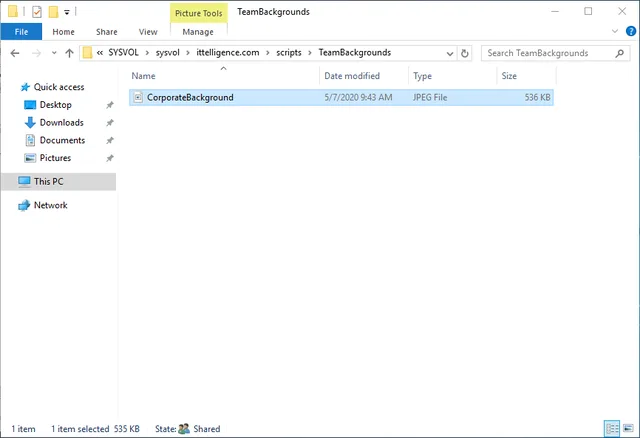
First step is to make background available on a network share. The domain DFS is a good candidate for this, make sure to copy the file to the local path on a domain controller and not via the UNC path.

Creating The Group PolicyLink to this section
1) From the Group Policy Management console create a new GPO and name it

2) After creating the GPO, edit it
3) Expand User Configuration/Preferences/Windows Settings/Files
4) From the Action menu or the Files node shell menu, add new File

5) In the Source file(s) line, enter the UNC path to the file in the Copy Background to Network Share section. As the Destination File, enter %AppDataDir%\Microsoft\Teams\Backgrounds\CorporateBackground.jpeg where CorporateBackground.jpeg is the desired destination filename.

6) Press OK, close the GPO. The GPO can now be linked to the desired location.
The ResultsLink to this section
After the GPO has applied, when users open the Background settings for Microsoft Teams, the custom background will be available as an option

CONCLUSIONLink to this section
I hope you found this tutorial useful. You are encouraged to ask questions, report any bugs or make any other comments about it below.
No comments yet
Comments are moderated and appear once approved.