How to Store Virtual Drives on Cloud Storage
IntroductionLink to this section
I have been a Dropbox premium user for years.
One of the main reasons for this is that they successfully support more files than any other cloud storage. This is important to me because I host hundreds and thousands of files. For example, I store all my command line utilities and portable applications on it. This way I have virtually all my tools back after a full sync from Dropbox by just updating my Path environment variable.
Recently though I have hit the million file mark and technically Dropbox only supports 500k files. This caused my Dropbox Starting and Indexing cycles to increase dramatically.
From previous experience, I know that Dropbox supports delta syncing, which got me thinking...
Virtual Hard Drive (VHDX file)Link to this section
More than 75% of my files in Dropbox do not require version control at the file level, but rather at the container level. In addition to this, I do not need to use any Dropbox features like sharing or accessing files from mobile devices.
Knowing that VHDX files can be mounted natively, my first implementation of this was a single mounted VHDX file of 65GB.
I confirmed that after I changed one file within this mounted drive, Dropbox only syncs the difference. The problem, however, was that the Indexing process took an hour or two.
I scratched that idea and decided to try Storage Spaces instead.
Windows 10 Storage SpacesLink to this section
Storage Spaces solved it for me because I could create a bunch of small virtual disks and mount them together.
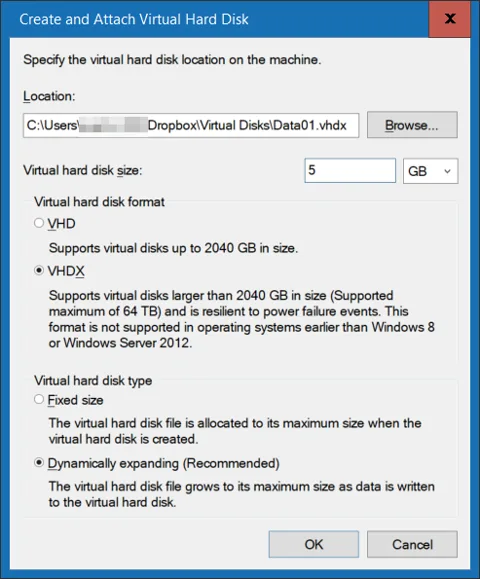
In my case, I created 25, 5GB Dynamically Expanding virtual drives, giving me a balance between index time and file count.
This process will also be useful if you want to do a backup "directly" to cloud storage.
To create a Storage Space I used the following process:
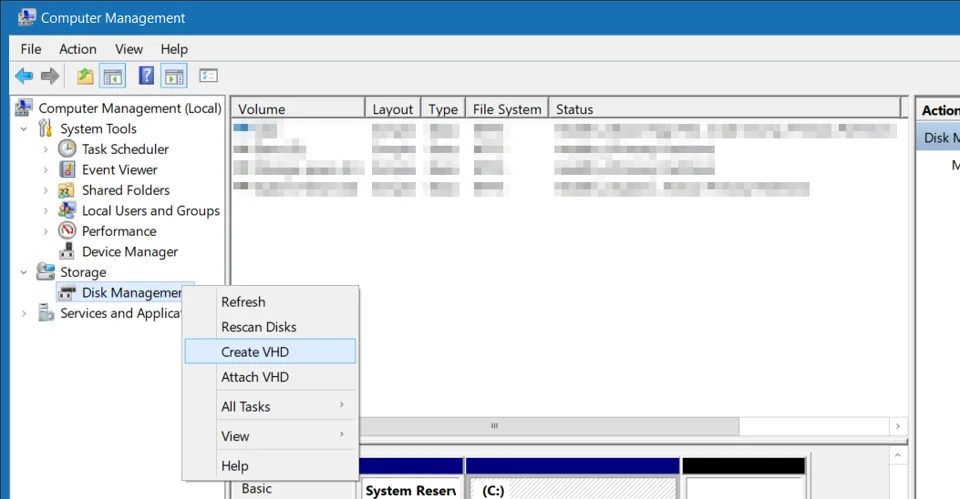
1) From Computer Management create and attach virtual drives from Disk Management.

2) From Control Panel or Start Menu search from Storage Spaces
3) Select Create a new pool and storage space

4) Select the virtual drives created in step 1

5) Name the Storage Space and select Simple (no resiliency). I opted for this because I just want to span the storage over the various virtual drives

After creating the Storage Space you can at any time add additional drives and space to it

After a computer restart, the Storage Space wasn't mounted though. To address this I added the following Powershell as a startup script
Get-ChildItem "C:\Users\MYUSERNAME\Dropbox\Virtual Disks" -Filter *.vhdx | foreach {Mount-VHD $_.FullName}ConclusionLink to this section
Because the drive is not configured as a Storage Space, drive consists of multiple smaller VHDX files that do not have the syncing and indexing issue experienced with a single VHDX file

Please note that this process will prevent constant file locking and it will reduce indexing time. You still need an internet connection capable of handling the upload and download of data associated with these VHDX files. This totally depends on the number of changes you are planning to make on this mounted drive.
I am using a 20 MBit/s fibre connection (20 down and 10 up) and the initial sync took less than a day. As for the changes I make in a day, that syncs in less than half-an-hour.
No comments yet
Comments are moderated and appear once approved.