.NET Windows Service Template – Timer, Topshelf, and Log4Net
- Visual Studio
- Topshelf NuGet package
- Topshelf.Log4Net NuGet package
IntroductionLink to this section
What I like about Topshelf is that it turns a console application into a service installer with a comprehensive set of command-line options for installing, configuring, and running your application as a service. This means you can run it as a console application and easily install it as a service without having to write the code.
I also utilize the Topshelf.Log4Net to enable both service and application logging.
For your convenience, the Visual Studio template can be downloaded from https://github.com/svermaak/downloads/raw/main/ITtelligence-Windows-Service.zip and simply imported
Creating the templateLink to this section
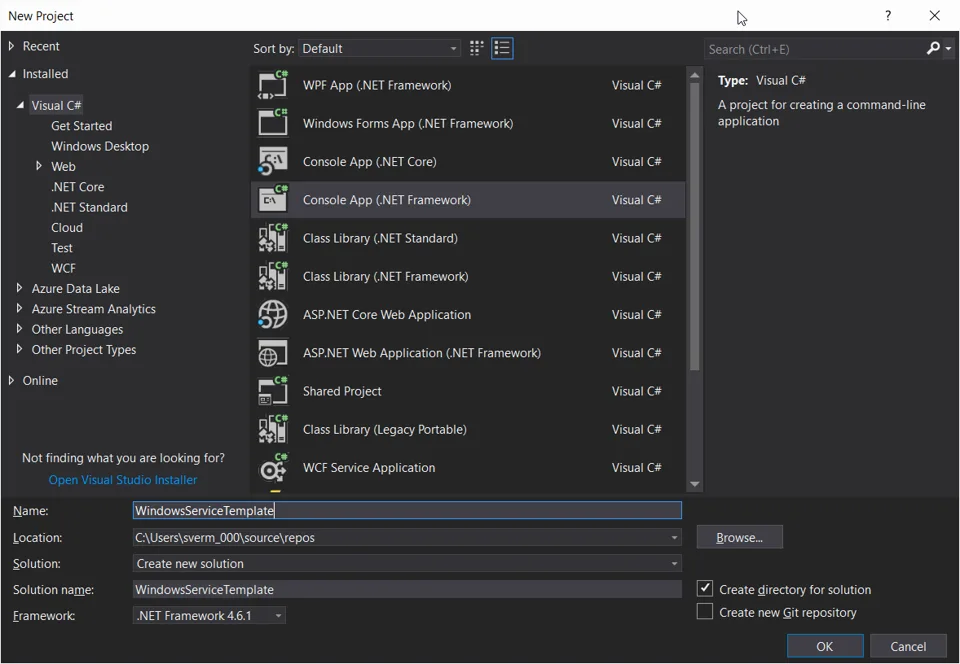
1) Start Visual Studio and create a Console Application (.NET Framework) Project

2) From Package Manage Console run this command to install Topshelf
Install-Package Topshelf -Version 4.1.03) From Package Manage Console run this command to install Log4Net for Topshelf
4) Add a class and call it MyService.cs
5) Add the following code to Service.cs (See comments in the code to understand what it is doing)
Application specific code can be added to the OnTimedEvent method.
using log4net;
using log4net.Config;
using System;
using System.Timers;

namespace WindowsServiceTemplate
{
public class MyService
{
private static readonly ILog _log = LogManager.GetLogger(typeof(MyService));
private Timer _heartbeatTimer = new Timer();
private volatile bool _requestServiceStop = false;
private readonly long _heartbeatInterval = 10;

public MyService()
{
XmlConfigurator.Configure();
_heartbeatTimer.Interval = _heartbeatInterval * 1000;
_heartbeatTimer.Elapsed += OnTimedEvent;
_heartbeatTimer.AutoReset = false;
_heartbeatTimer.Start();
}

public void Start()
{
_requestServiceStop = false;
_heartbeatTimer.Start();
}

public void Stop()
{
_requestServiceStop = true;
_heartbeatTimer.Stop();
}

private void OnTimedEvent(object source, ElapsedEventArgs e)
{
_log.Info($"Heartbeat\t{DateTime.Now}");

// Put code here

if (!_requestServiceStop)
{
_heartbeatTimer.Start();
}
}
}
}
6) Add a class and call it ConfigureService.cs
7) Add the following code to ConfigureService.cs
using log4net.Config;
using Topshelf;

namespace WindowsServiceTemplate
{
internal static class ConfigureService
{
internal static void Configure()
{
XmlConfigurator.Configure();

HostFactory.Run(configure =>
{
configure.Service(service =>
{
service.ConstructUsing(s => new MyService());
service.WhenStarted(s => s.Start());
service.WhenStopped(s => s.Stop());
});

configure.RunAsLocalSystem();
configure.UseLog4Net();

configure.SetServiceName("Put your service name here");
configure.SetDisplayName("Put your service display name here");
configure.SetDescription("Put your service description here");
});
}
}
}
8) Edit the App.config file. Essentially we are adding the Log4Net configuration
<?xml version="1.0" encoding="utf-8"?>

<configuration>
<configSections>
<section name="log4net" type="log4net.Config.Log4NetConfigurationSectionHandler, log4net" />
</configSections>

<log4net>
<appender name="console" type="log4net.Appender.ConsoleAppender, log4net">
<layout type="log4net.Layout.PatternLayout">
<conversionPattern value="%d{ABSOLUTE} [%thread] %-5p %c{1}:%L - %m%n" />
</layout>
</appender>

<appender name="RollingFile" type="log4net.Appender.RollingFileAppender">
<lockingModel type="log4net.Appender.FileAppender+MinimalLock" />
<file value="logs\" />
<datePattern value="'Service-Name-'dd.MM.yyyy'.log'" />
<staticLogFileName value="false" />
<appendToFile value="true" />
<rollingStyle value="Composite" />
<maxSizeRollBackups value="10" />
<maximumFileSize value="5MB" />
<layout type="log4net.Layout.PatternLayout">
<conversionPattern value="%d [%t] %-5p %c - %m%n" />
</layout>
</appender>

<root>
<level value="DEBUG" />
<appender-ref ref="console" />
<appender-ref ref="RollingFile" />
</root>
</log4net>
</configuration>
9) Finally, edit Program.cs
namespace WindowsServiceTemplate
{
internal class Program
{
private static void Main(string[] args)
{
ConfigureService.Configure();
}
}
}
Demo ExecutionLink to this section
This is demo execution of application directly from command line.

The following shows a sample of the log file that is generated
The application can easily be installed as a Windows Service with the INSTALL parameter
The installed service

ConclusionLink to this section
I hope you found this tutorial useful. You are encouraged to ask questions, report any bugs or make any other comments about it below.
No comments yet
Comments are moderated and appear once approved.