How to Audit Computers with PowerShell and WMI
- PowerShell 5.0 or later (uses classes)
- PowerShell ActiveDirectory module (RSAT)
- PowerShell remoting enabled on target computers
IntroductionLink to this section
When auditing Windows computers the WMI classes are a goldmine of information.
For example, if I wanted to audit computer processors, I could utilize the WIN32_Processor WMI class
https://docs.microsoft.com/en-us/windows/desktop/cimwin32prov/win32-processor
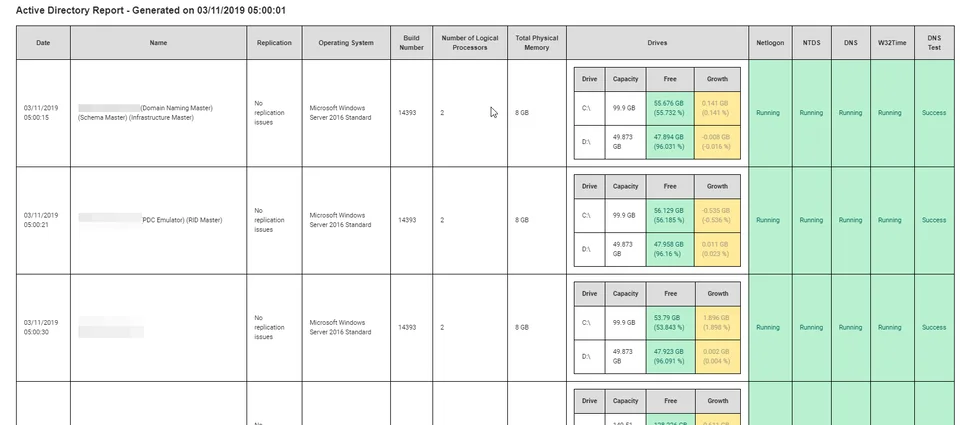
This script in this article allows you to easily add additional WMI classes which are populated during the audit process and saved as a JSON file. This information is readily available to write a report against by just deserializing these JSON files.
These JSON files are just a textual representation of the WMI object which, when deserialized, can be used as the original WMI object.
For more information regarding the JSON format, see https://www.w3schools.com/js/js_json_intro.asp
The Script (AuditComputer.ps1)Link to this section
class Computer
{
    [System.Object[]]$WMI
}

$computer = [Computer]::New();

$computer.WMI += (Get-WMIObject Win32_OperatingSystem);
$computer.WMI += (Get-WMIObject Win32_Volume);
$computer.WMI += (Get-WMIObject Win32_ComputerSystem);
$computer.WMI += (Get-WMIObject Win32_Service);
$computer.WMI += (Get-WMIObject Win32_Processor);

ConvertTo-Json -Depth 10 $computer
Even though it is a deceptively simple script, it is extremely powerful. It allows you to pull all information, whether you are using it or not, to JSON format.
ExecutionLink to this section
Below is an example auditing of all computers in a domain.
$Computers = Get-ADComputer -Filter *;

ForEach ($Computer in $Computers)
{
    Invoke-Command -computer $Computer.Name -FilePath .\AuditComputer.ps1 | Out-File -FilePath ".\$($Computer.Name)-$(get-date -f yyyyMMddHHmmss).json"
}
Below is an example of deserializing JSON files back to WMI class objects.
$fullpath = "SomeComputer-20190305182712.json";

$computerAudit = Get-Content $fullpath | ConvertFrom-Json;
$computerSystem = $computerAudit.WMI | Where-Object {$_.__CLASS -eq "Win32_ComputerSystem"};
$operatingSystem = $computerAudit.WMI | Where-Object {$_.__CLASS -eq "Win32_OperatingSystem"};
$drives = $computerAudit.WMI | Where-Object {$_.__CLASS -eq "Win32_Volume" -and $_.DriveType -eq "3" -and $_.SystemVolume -ne "True"} | Sort("Caption");
$Processor = $computerAudit.WMI | Where-Object {$_.__CLASS -eq "Win32_Processor"};
ConclusionLink to this section
I hope you found this tutorial useful. You are encouraged to ask questions, report any bugs or make any other comments about it below.
No comments yet
Comments are moderated and appear once approved.