Automated object placement using AutoAD
- Delegated rights to write computer descriptions
- GPO running the description logon script
- Service account for object placement
- Subnet, site and target OU mappings
Implementation
1) Computer Description Update Process
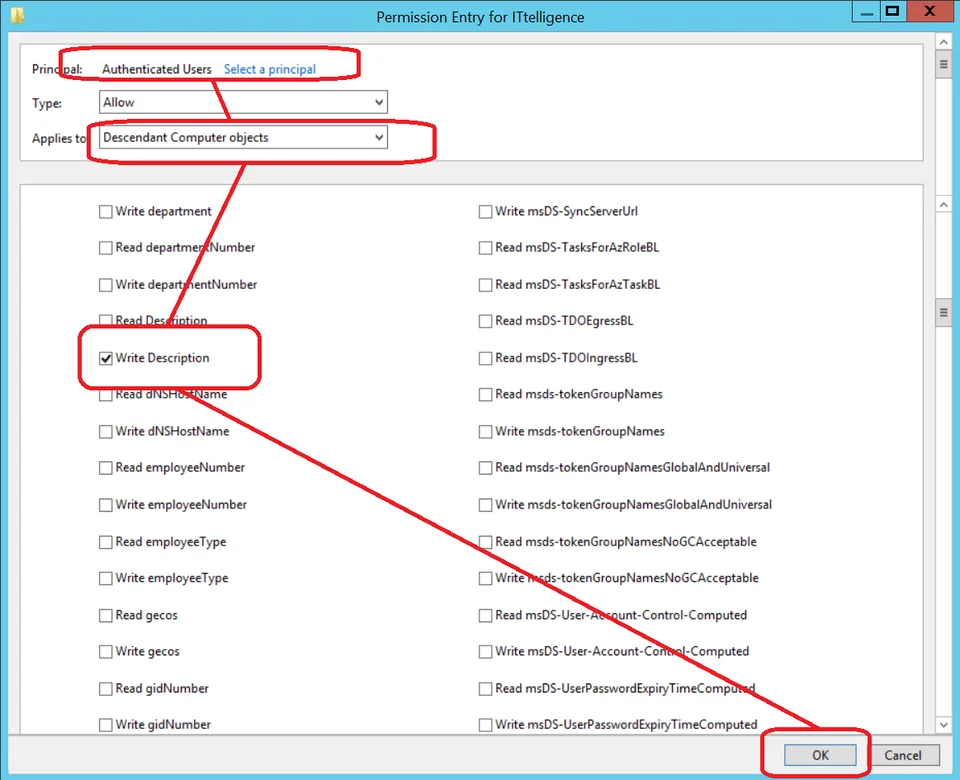
a) Delegation
To be able to update computer descriptions you need to delegate rights.
Add the following permissions to Active Directory either to the root of the domain or any other Organizational Unit. You would add it to an Organizational Unit if you only want to use this process for some computers

b) Powershell Script
Below is the Powershell script used to update the computer description.
It is important to note that you should not change the format of the message if you are planning to use my automated object placement process.
This script will be used within a group policy in step c
try
    {
        $strUserName = $env:username;
        $strComputerName = $env:computername;
        $objADSystemInfo = New-Object -ComObject ADSystemInfo;
        $objType = $objADSystemInfo.GetType();
        $strSiteName = $objType.InvokeMember('SiteName', 'GetProperty', $null, $objADSystemInfo, $null);
        $strLogonDate = Get-Date -Format "dd-MM-yyyy HH:mm:ss";
        $strMessage = "$($strUserName) logged in on $($strLogonDate) at $($strSiteName) site";
        $strFilter = "(&(objectCategory=Computer)(name=$strComputerName))"
        $objSearcher = New-Object System.DirectoryServices.DirectorySearcher
        $objSearcher.Filter = $strFilter
        $objPath = $objSearcher.FindOne()
        $objComputer = $objPath.GetDirectoryEntry()
        $objComputer.InvokeSet("Description", $strMessage)
        $objComputer.CommitChanges()
    }
catch
    {
        throw
    }
c) Group Policy Object
Create a GPO and link it to the root of a domain or Organizational Unit used in step a.
Add the PowerShell script from step b as a User Logon script

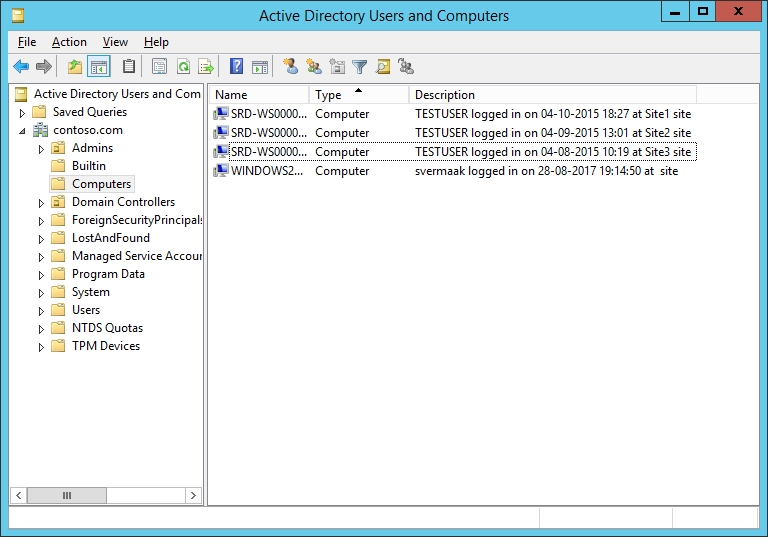
d) Result
After these steps, notice how the computer descriptions are automatically populated once the users log on to their computers
2) AutoAD
a) Download and extract AutoAD.zip (here is VirusTotal scan) to a folder of your choice on the computer which it will be scheduled to run on.
b) Run Configurator.exe (Configurator Editor).
c) On the Encrypt tab, enter the password for the account that will be performing the automated placement task. Encrypt it with key 2xCJvezFBYWQPBeHy7USdajK55M8skww and record encrypted password

d) On the Settings tab, enter the domain information, connection user name and the encrypted password recorded in step 2c.
Specify which objects AutoAD should create automatically

e) Specify Active Directory information. The format for these are Subnet/Bit Mask|AD Site Name|Computer DN|User DN
Subnet/Bit Mask: The subnet and mask (in bit format) for the specific entry
AD Site: The Active Directory site to which the subnet belongs
Computer DN: The distinguished name of the organizational unit where to move computers to for computer objects in this subnet
User DN: The distinguished name of the organizational unit where to move users to for user objects in this subnet
Please Note: Ensure that you do not allow users/admins to gain any additional permissions by moving users from one container to another. The reason for this is that a user move might be forced to an incorrect OU if descriptions are tampered with.

f) Specify any user DNs that should be skipped

g) Specify any computer DNs that should be skipped

Demo Execution
After implementing ComputerDescriptionUpdate.ps1 notice how computer descriptions are automatically updated
AutoAD.exe output
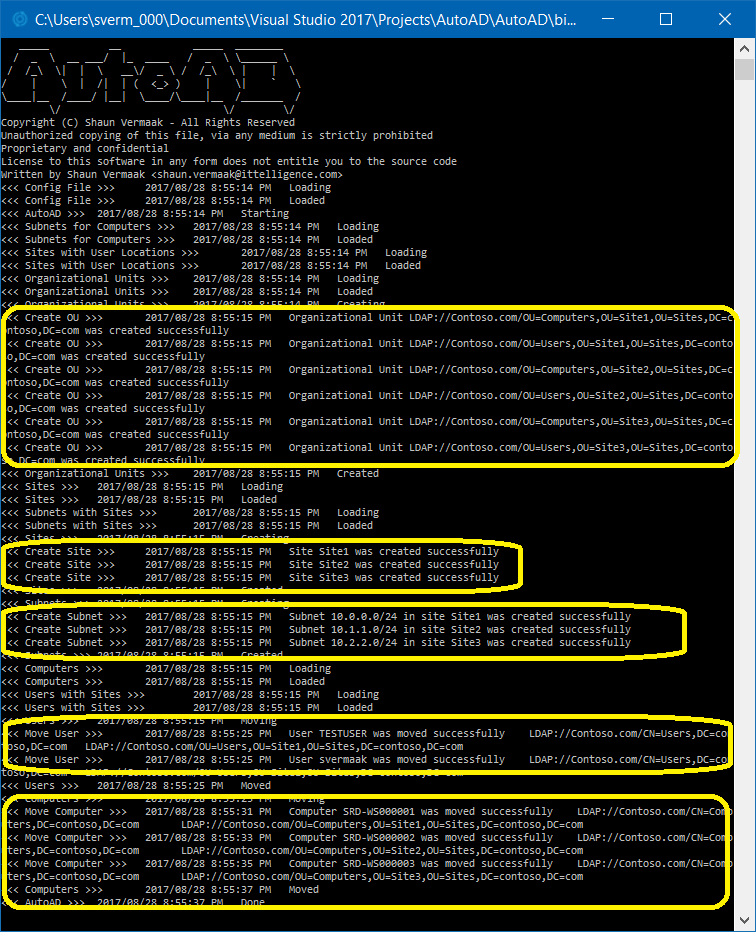
Sites and subnets automatically created by AutoAD
Organizational Units automatically created by AutoAD

Object placement (example 1)

Object placement (example 2)

Object placement (example 3)

Object placement (example 4)

Conclusion
Using this process will keep Active Directory organized and objects in the correct Organizational Units
No comments yet
Comments are moderated and appear once approved.