How to apply a dynamic background via Active Directory GPP
Step 1 - Creating BackgroundsLink to this section
Designing backgrounds are out of scope for this article but a few guidelines are listed below
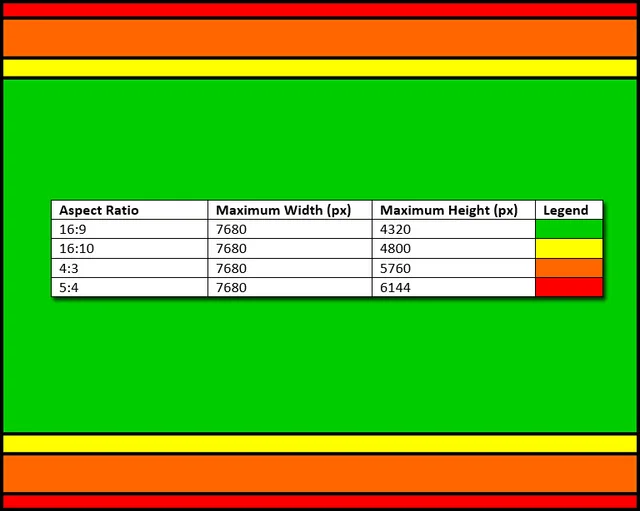
Using information from https://en.wikipedia.org/wiki/Display_resolution we can conclude that we mainly need to cater for 16:9, 16:10, 4:3 and 5:4 aspect ratios with a maximum width of 7680px.
If the required background is mainly horizontal, use this guide to create four different versions of background image

Alternatively, if the image is mainly vertical, start with a 10 924px x 6144px image and crop to create four different versions of background image

Step 2 - User Environmental VariablesLink to this section
After creating the four different versions of the background, we need a way to control which version of background is pushed to the computers.
Create four user environmental variable objects using GPO User Environmental Preferences

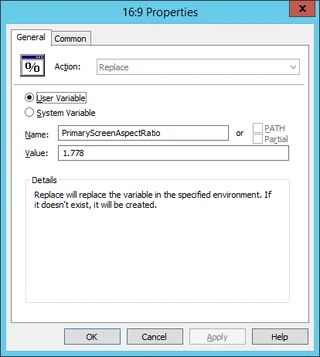
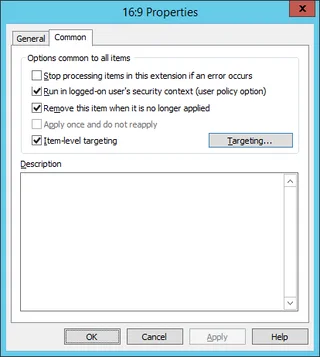

Here is the values required to create the four entries
- 16:9 - PrimaryScreenAspectRatio = 1.778
- Select * from Win32_DesktopMonitor where ScreenWidth='1280' and ScreenHeight='720'
- Select * from Win32_DesktopMonitor where ScreenWidth='1600' and ScreenHeight='900'
- Select * from Win32_DesktopMonitor where ScreenWidth='1920' and ScreenHeight='1080'
- Select * from Win32_DesktopMonitor where ScreenWidth='2560' and ScreenHeight='1440'
- Select * from Win32_DesktopMonitor where ScreenWidth='3840' and ScreenHeight='2160'
- Select * from Win32_DesktopMonitor where ScreenWidth='7680' and ScreenHeight='4320'
- 16:10 PrimaryScreenAspectRatio = 1.6
- Select * from Win32_DesktopMonitor where ScreenWidth='1280' and ScreenHeight='800'
- Select * from Win32_DesktopMonitor where ScreenWidth='1440' and ScreenHeight='900'
- Select * from Win32_DesktopMonitor where ScreenWidth='1680' and ScreenHeight='1050'
- Select * from Win32_DesktopMonitor where ScreenWidth='1920' and ScreenHeight='1200'
- Select * from Win32_DesktopMonitor where ScreenWidth='2560' and ScreenHeight='1600'
- 4:3 PrimaryScreenAspectRatio = 1.333
- Select * from Win32_DesktopMonitor where ScreenWidth='320' and ScreenHeight='200'
- Select * from Win32_DesktopMonitor where ScreenWidth='640' and ScreenHeight='480'
- Select * from Win32_DesktopMonitor where ScreenWidth='800' and ScreenHeight='600'
- Select * from Win32_DesktopMonitor where ScreenWidth='1024' and ScreenHeight='768'
- Select * from Win32_DesktopMonitor where ScreenWidth='1152' and ScreenHeight='864'
- Select * from Win32_DesktopMonitor where ScreenWidth='1600' and ScreenHeight='1200'
- 5:4 PrimaryScreenAspectRatio = 1.25
- Select * from Win32_DesktopMonitor where ScreenWidth='1280' and ScreenHeight='1024
A C# application can be deployed as an addition to the GPO User Environmental Variables Preference Items as a GPO User File Preference. This is useful on RDP sessions and Hyper-V consoles where the WMI objects are not populated properly.
using Microsoft.Win32;
using System;
using System.Collections.Generic;
using System.Drawing;
using System.Linq;
using System.Text;
using System.Threading.Tasks;
using System.Windows.Forms;

namespace SetXRes
{
    class Program
    {
        static void Main(string[] args)
        {

            double primaryScreenAspectRatio;
            Rectangle resolution = Screen.PrimaryScreen.Bounds;
            primaryScreenAspectRatio = Math.Round(((double)resolution.Width / (double)resolution.Height), 3);

            Console.WriteLine(resolution.Width);
            Console.WriteLine(resolution.Height);
            Console.WriteLine(primaryScreenAspectRatio.ToString().Replace(',', '.'));

            Environment.SetEnvironmentVariable("PrimaryScreenAspectRatio", primaryScreenAspectRatio.ToString().Replace(',','.'), EnvironmentVariableTarget.User);
        }
    }
}
Step 3 - Background File Deployment
Create four file objects using GPO User Files Preferences
Based on the User Environmental Variable set in the previous step, an appropriately ratioed background file will be pushed to computers

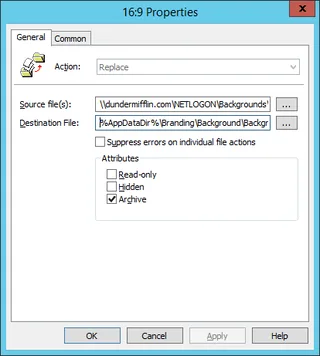
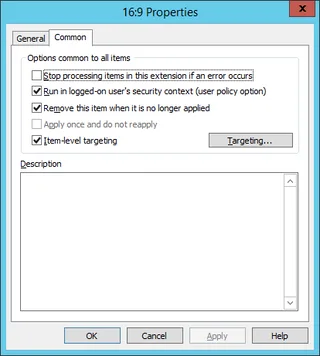
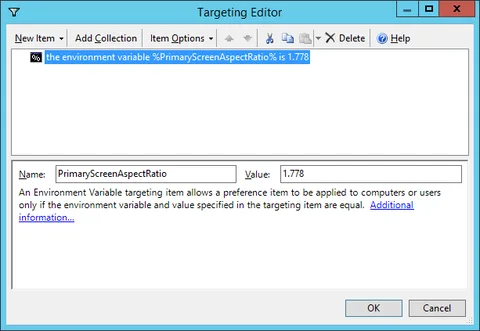
Here is the values required to create the four entries
- 16:9 - Source file(s) \\YOURDOMAIN.com\NETLOGON\Backgrounds\16-9.PNG
- the environment variable %PrimaryScreenAspectRatio% is 1.778
- 16:10 Source file(s) \\YOURDOMAIN.com\NETLOGON\Backgrounds\16-10.PNG
- the environment variable %PrimaryScreenAspectRatio% is 1.6
- 4:3 16:10 Source file(s) \\YOURDOMAIN.com\NETLOGON\Backgrounds\4-3.PNG
- the environment variable %PrimaryScreenAspectRatio% is 1.333
- 5:4 16:10 Source file(s) \\YOURDOMAIN.com\NETLOGON\Backgrounds\5-4.PNG
- the environment variable %PrimaryScreenAspectRatio% is 1.25
The target file for all of these entries is %AppDataDir%\Branding\Background\Background.png
Step 4 - Applying Background
Now for the easy bit, just configure the background %AppData%\Branding\Background\Background.png.
Because the background is dynamically assigned, it will always have the same path on the computers


No comments yet
Comments are moderated and appear once approved.