How to Automatically Log Off Users on a Schedule
- Administrator rights to install a service
IntroductionLink to this section
For this project, I used the amazing TopShelf library to host code that essentially triggers the WTSLogoffSession API when the desired schedule occurs.
SetupLink to this section
1) Download the AutomaticLogoff tool and extract its contents to a folder on a computer that you are planning to install the tool on. (I recommend extracting to C:\Program Files\AutomaticLogoff)
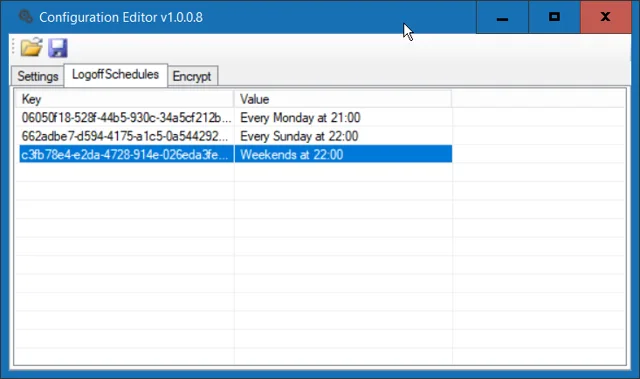
2) Run Configurator.exe (Configurator Editor). On the LogoffSchedules tab, specify the schedules when users should be logged off (+ or INS to add, - or DEL to delete, Enter or double-click to edit).
Please note: Configurator Editor is a generic config file editor I developed and for AutomaticLogoff tool there is no need to adjust anything on the Settings tab or the Encrypt tab. Key values are used internally and are automatically generated.
Here's an example of some valid schedules:
Every Weekday at 09:00 PM
Sundays on 21:00
Thursdays at 19:00:00

3) Run the following command to install the AutomaticLogoff service
AutomaticLogoff.exe installThe CodeLink to this section
using System;
using System.Collections.Generic;
using System.Runtime.InteropServices;

namespace AutomaticLogoff
{
[StructLayout(LayoutKind.Sequential)]
internal struct WTS_SESSION_INFO
{
public int SessionID;
[MarshalAs(UnmanagedType.LPStr)]
public string pWinStationName;
public WTS_CONNECTSTATE_CLASS State;
}

internal enum WTS_CONNECTSTATE_CLASS
{
WTSActive,
WTSConnected,
WTSConnectQuery,
WTSShadow,
WTSDisconnected,
WTSIdle,
WTSListen,
WTSReset,
WTSDown,
WTSInit
}

internal enum WTS_INFO_CLASS
{
WTSInitialProgram,
WTSApplicationName,
WTSWorkingDirectory,
WTSOEMId,
WTSSessionId,
WTSUserName,
WTSWinStationName,
WTSDomainName,
WTSConnectState,
WTSClientBuildNumber,
WTSClientName,
WTSClientDirectory,
WTSClientProductId,
WTSClientHardwareId,
WTSClientAddress,
WTSClientDisplay,
WTSClientProtocolType,
WTSIdleTime,
WTSLogonTime,
WTSIncomingBytes,
WTSOutgoingBytes,
WTSIncomingFrames,
WTSOutgoingFrames,
WTSClientInfo,
WTSSessionInfo
}

internal class Sessions
{
[DllImport("wtsapi32.dll", SetLastError = true)]
static extern bool WTSLogoffSession(IntPtr hServer, int SessionId, bool bWait);

[DllImport("Wtsapi32.dll")]
static extern bool WTSQuerySessionInformation(
System.IntPtr hServer, int sessionId, WTS_INFO_CLASS wtsInfoClass, out System.IntPtr ppBuffer, out uint pBytesReturned);

[DllImport("wtsapi32.dll", SetLastError = true)]
static extern IntPtr WTSOpenServer([MarshalAs(UnmanagedType.LPStr)] String pServerName);

[DllImport("wtsapi32.dll")]
static extern void WTSCloseServer(IntPtr hServer);

[DllImport("wtsapi32.dll", SetLastError = true)]
static extern Int32 WTSEnumerateSessions(IntPtr hServer, [MarshalAs(UnmanagedType.U4)] Int32 Reserved, [MarshalAs(UnmanagedType.U4)] Int32 Version, ref IntPtr ppSessionInfo, [MarshalAs(UnmanagedType.U4)] ref Int32 pCount);

[DllImport("wtsapi32.dll")]
static extern void WTSFreeMemory(IntPtr pMemory);

internal static List GetSessionIDs(IntPtr server)
{
List sessionIds = new List();
IntPtr buffer = IntPtr.Zero;
int count = 0;
int retval = WTSEnumerateSessions(server, 0, 1, ref buffer, ref count);
int dataSize = Marshal.SizeOf(typeof(WTS_SESSION_INFO));
Int64 current = (int)buffer;

if (retval != 0)
{
for (int i = 0; i < count; i++)
{
WTS_SESSION_INFO si = (WTS_SESSION_INFO)Marshal.PtrToStructure((IntPtr)current, typeof(WTS_SESSION_INFO));
current += dataSize;
sessionIds.Add(si.SessionID);
}
WTSFreeMemory(buffer);
}
return sessionIds;
}

internal static void LogoffAllUsers()
{
string input = string.Empty;
IntPtr server = WTSOpenServer(Environment.MachineName);

try
{
foreach (int sessionID in GetSessionIDs(server))
{
WTSLogoffSession(server, sessionID, true);
}
}
finally
{
WTSCloseServer(server);
}
}
}
}ConclusionLink to this section
You can do this installation, change the startup state etc. via Group Policy Preferences for example, here is an article on deploying a simple application https://www.experts-exchange.com/articles/29126/Deploy-single-EXE-applications-without-installers.html
When you deploy the tool via a GPO File Preference, the schedule can be centrally managed by simply deploying a new config file.
No comments yet
Comments are moderated and appear once approved.